Nov 26, 2012

Wasteland Reloaded

This is my DJ schedule at Wasteland Reloaded rock club.

http://slurl.com/secondlife/Sommerinsel/235/33/23

Saturday, 2 pm
Sunday, 2 pm
The program is: Rock Hard, with DJ Rx.
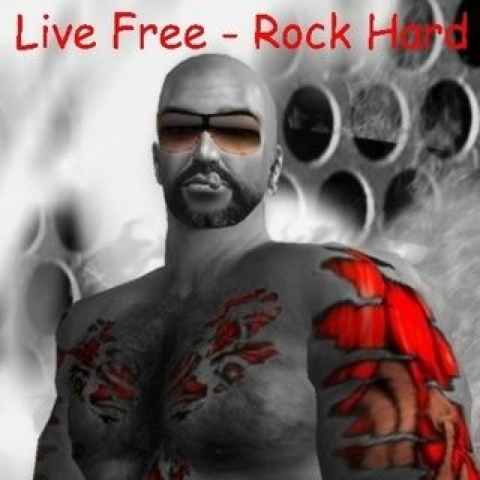
The music is 110 dB of balls to the walls, heavy thumping, hard rock. The show is a hit at the club. If you like your music hard then check out Rock Hard Weekend.
Nov 25, I celebrated my birthday a day in advance, and wow, what a party!!

Tues, 8 pm
The program is: Heavy Metal Tuesday.
I turn it up a few notches for rip roaring, ear bleeding heavy metal. So, if you need a little pick me up to carry you past Hump Day, then swing on by for your weekly dose of over the top heavy metal.

Stay Heavy, Stay Hard, with DJ Rx

Stay up to date with events at Wasteland Reloaded facebook page - https://www.facebook.com/wastelandReloadedRockClub

Feb 27, 2012

Linden Lab Acquires LittleTextPeople

source: TechCrunch

Linden Lab Acquires Game Studio LittleTextPeople To Build Beyond Second Life

Independent game studio LittleTextPeople made waves at GDC with an interactive fiction game. Now it’s been acquired by virtual world pioneer Linden Lab, who will use its team and tech to create standalone products outside of its sole game Second Life. LittleTextPeople says it brings a “simulator able to model social practices and individual
personalities”. That means the new Linden Lab games could have the “rich emotional dialogue of a novel, rather than a fight scene in an action movie”.

The acquisition is Linden Lab’s first under relatively new CEO Rod Humble who previously built EA’s The Sims. In 2010, Linden Lab laid off 30% of its staff, and its old CEO resigned .

Humble’s smart move to diversify the company shows his understanding that the world is not the same as when Second Life launched almost a decade ago.

In that decade, Second Life grew to pull in $75 million in revenue a year thanks to in-game land sales and taxes on player-to-player transactions. However it also, developed some serious problems that could sink Linden Lab if it doesn’t branch out.

Second Life in part revolves around its ability to let users create virtual objects and sell them for real money. The whole world is built on old, inefficient code, and if Linden tries to update it those virtual objects can break, triggering massive backlash from buyers and sellers. Meanwhile, the mobile and social game ecospheres have evolved, which while less flexible than the Second Life sandbox are drawing the attention of legions of gamers.

Aug 3, 2011

Meeroos are starving in SL

Wagner James Au sez, “Meeroos, an extremely popular species of virtual, breedable animal in Second Life, are now starving, because griefers have been selling their owners unauthorized food, and Linden Lab accidentally shut them down *and* their legitimate food supplier. The creatures don’t starve to death if their owners fail to feed them — after awhile, they’re just programmed to abandon their owners, presumably to find food. Linden Lab is finally addressing the issue, but Meeroos’ creators say the world is still ‘flooded with unauthorized food.’”

Meeroos, SL’s extremely popular species of virtual, breedable animals created by Malevay Studios, are currently starving. As reported by Malevay’s Catherine Farspire, unidentified griefers using variations of the avatar name “Meeroos Resident” (the company’s official account) were found selling unauthorized Meeroos food in the region of Twas. (The miscreants, says Ms. Farspire, “built their own [store] in the sky selling fraudulent food”.) As a result, she reports, Linden Lab has closed down the region of Twas — and also blocked “Meeroos Resident”, the legitimate Malevay Studios account: “We believe the account was blocked by Linden Lab by mistake, given all the reported accounts were variations of the same name, or the account was mistakenly reported by residents meaning to abuse report the offending avatars. We simply cannot be sure. Unfortunately, this has dealt us a crippling blow at the worst time possible.”

(UPDATE: Meeroos Account Reopened, But SL Still “Flooded With Unauthorised Food”)

Jun 3, 2011

Rock n Roll Ain't Noise Pollution

Not only am I a photographer in Second Life, I am also a DJ at Flight of the Kiwi Rock Club, NZ.

When I am on deck at FOTK Rock Club, the tunes are cranked to 110 decibels and then I Rip The Freakin' Knobs Off!

No pansy ass wimpy shit on my playlist (yawn...)

I only play the Loudest, Ear Splitting, Mind Numbing, In Your Face, Bone Jarring, Balls to the Walls, Bad Ass Rock!

my music motto is: Go Big, or Go Home!

This is my weekend schedule:
Friday 10 pm - Midnight SLT
Saturday 6 pm - 10 pm SLT
Sunday 8 pm - 10 pm SLT

Be sure to join the FOTK Group to stay up to date with events because you never know what nutty, insane stuff could happen at Flight of the Kiwi. I might do one of my crazy 12 hour Rock Marathons again...
"Flight of the Kiwi Rock Club - the Best Damn Little Island to Rock!"

Jun 1, 2011

review: Onavo

Wired Buddha - the Tao of Technology
review: data stream compression
Posted: 01 Jun 2011 12:52 AM PDT
Onavo is an iPhone application which compresses the data stream on the fly. Ideally, Onavo is for people who travel. How is the data stream compressed? In a nutshell, Onavo redirects your data stream... [www.WiredBuddha.com]

May 19, 2011

Avatar Rendering Cost

What is avatar rendering cost?
ARC is a value of what it costs Second Life, the sim, avatars nearby and you to render your avatar.

Is this something important I should know about?
Yes.

Is it something I have to pay for?
No, not in Lindens. But you pay for it in lag.

Is it something I can fix?
Yes.

Let me explain:
All the clothing, articles and attachments you put on your avatar makes your avatar longer to render.

Sure that bling might be pretty and you think you're totally rocking with the twinkling shoes, but it is a cost to the system. It is a cost to the sim you are in. It is a cost to other avatars near you.

Imagine a dozen avatars with a high ARC value are in one sim. Well, this is going to slow things down not only for you, but for everyone else near you.

Now, imagine 12,000 avatars with a high ARC value. What affect do you think this would this have?

"How do I know what my avatar rendering cost is?"

You can find this value very easily: look at the top menu and look for ADVANCED. It will be to the right of HELP.

If you don't see ADVANCED, press CTRL+ALT+D to toggle it on. On a laptop, if the left ALT key does not work, use the ALT key on the right side of the keyboard.

Click on ADVANCED. Scroll down to RENDERING, then INFO DISPLAYS.

Half way down the list click Avatar Rendering Cost. The number appearing over the avatar is the ARC value.

Now, look carefully. This is very important. Is the number Red? If so, your ARC value is high. Your first priority is to lower it.

Orange or yellow is a warning.

Green means the ARC value is a very good low value. Second Life likes a low ARC value.

Just for reference, I have seen ARC values well over 3,000 and even 4,000. Hell, I have an outfit which puts my ARC value over 6,000!! Most of the time my ARC value is well below 600.

By keeping my ARC value low, I'm doing myself, Second Life, the sim and others a favour.

"How do I lower my ARC value?"

Start looking at what your avatar wearing - attachments, clothing, jewelry, skins. Take off items and see how this affects the cost to render your avatar.

Most often it is hair (sorry ladies) Jewelry, shoes and attachments can also cause a high ARC value. Men can be just as bad as women when it comes to a high ARC value.

So really, it is a courtesy to others to keep your Avatar Rendering Cost down.

Remember, friends don't let friends have a high Avatar Rendering Cost.

May 10, 2011

Get Your Rock On Marathon!

Saturday, 14 May 2011. 10am SLT to Midnight
{ { { ::: F O T K R O C K ::: } } }

DJ Regor - the Newest Hottest Rocking DJ at: FoTk RoCk cLuB in NZ.
starting at 10am (SLT/PST) DJ Regor is hosting a Get Your Rock On Marathon!
from 10pm to Midnight the theme is: "Tats and Tears".
wear your best tats and your worst clothing. prizes to be won!
so, whether you're up early, or up late, drag your sorry lazy ass to FoTK RocK cLuB for the best Ear Splitting, Mind Numbing, In Your Face, Balls to the Walls Rock!
DJ Regor Cranks the Tunes to 110 decibels and Rips the Freaking Knobs Off!!

http://maps.secondlife.com/secondlife/Pacific Dreamz Lagoons/13/205/21/

Apr 14, 2011

Making Outfits

Sorting clothing to make outfits is really very easy.
I will explain in detail each step.

Read everything through to understand it. 

It may sound and look complicated at first, but follow the steps and you will see just how simple it is :)

First off, wear an outfit. this will be an example outfit.

Next, we are going to make a folder for that outfit.
Go to the Clothing folder at the top of the Inventory Window.
Right-click on the folder name: Clothing. when the menu pops up, Select: New Folder. name the folder for the outfit you are wearing.

But here's a little trick: put a Period at the beginning of the folder name.
This will sort the folder to the top, because the ASCII value of a Period precedes the ASCII value of the letter A.


I use this method to indicate an outfit folder.
IE ".Beach Wear" or ".Club Outfit", etc.

Now, here comes the best part:

In the Inventory Window, under File (top left corner) select: New Inventory Window
This opens another Inventory Window.

In the Search Bar of the second Inventory Window, type: WORN.
This shows everything you are currently wearing.

If you are using Phoenix Viewer there is a tab for Worn items.

Now, starting with the first item you are wearing, right-click and select: Copy

In the first Inventory Window, right-click on the new outfit folder you made and select: Paste As Link

Continue this procedure with the rest of the items that show under: WORN

Each link will show in Italics (item is a link) and Bold (item is worn).

There you go, you just made an outfit folder!


You can use this method for any item that you want to wear or add: clothing, shoes, hair, skins, shapes, jewelry, weapons.

This process leaves the items in their original location but with a shortcut, a reference link, in a separate folder.

Just like on your computer, you make a shortcut to the desktop for a program, without moving the original program.

When you want to wear that outfit or item, just right-click on the folder name and select: Wear or Add.

When you want to take off that outfit or item, right-click on the folder name, select: Take Off Items.


You can also select individual items to remove.

By following this method, you can make all the outfit folders you need.

Mar 19, 2011

computer security

My friend: the Wired Buddha (the Tao of Technology) has a great website: www.WiredBuddha.com


Particularly, there is a very good page on computer software and security.


You really want to check it out and read carefully. Lots of information.

Mar 1, 2011

Phoenix Viewer settings

Phoenix Viewer has plenty of settings to consider and choose from.

So, rather than repeat what has already been written, the settings can be found here with a fairly good explanation.

Feb 27, 2011

welcome back to Second Life

Yes, I have returned to Second Life. Rumours of my demise have been greatly exaggerated...

A few people, my true friends, were still around (you know who you are :) and I was welcomed back with open hearts. You know who your real friends are when they are still there, even after a lengthy absence. They understand and welcome you back, regardless of the reasons why.

I am now using Phoenix Viewer (www.PhoenixViewer.com) When Emerald Viewer died, Phoenix Viewer was born out of the ashes.

The settings of Phoenix are pretty well those of Emerald. There are a few extras. I have gone through the settings once again, to understand what they are. I will post helpful tips, and such, on how to tweak the settings and adjusting graphics so that you can get the most out of Second Life.

I realized how much I missed SL. It is good to be back and reconnect.

Thank you, my friends, for still being there.

Oct 1, 2010

Emerald Viewer. the end.

Linden Lab has enforced their policy regarding third party viewers for Second Life.
The issue is about a violation of terms of service in regards to Emerald Viewer.

This decision of Linden Lab will affect anyone using Emerald Viewer, which is what I used. I adamantly refused to use the default SL viewer.
Emerald Viewer is a vastly superior third party viewer in all aspects. The vast number of people using Emerald is testimony to that fact.

Emerald gave the user many options and many controls.
The feature which I used the most was the control of lighting. I relied on this for my photography in Second Life. Any professional photographer knows that the mastery of light is paramount to producing quality photos. Without this ability, a photo is nothing more than a Polaroid snapshot.

Linden Lab is forcing users to use Viewer 2. This program is inferior to Emerald in so many way and lacks the many options which Emerald offered.

Many users of Emerald are refusing to log in to Second Life if they are forced to use Viewer 2. I am one of those users.

Until such time as a third party viewer comparable to Emerald Viewer comes along, I may not log into Second Life.

I am too busy in RL to research other third party viewers. If anyone knows of a decent third party viewer please post to my blog.
If I am not able to log into Second Life using Emerald Viewer, then I will use MetaBolt (metabolt.net) to check messages. This is a non-graphics text client.

To my dear and valued friends in Second Life, I miss you greatly, more than you know.

Until I return.

sincerely,
Regor Romano
Romano Photography

--
more information can be found on the Emerald Viewer blog:
http://blog.modularsystems.sl/2010/09/01/the-end/

May 1, 2010

animate Linden Trees & Plants

How to animate Linden Trees & Plants:
go to: advanced on the top menu
CTRL + ALT + D  to toggle it on

click Debug Settings
a window opens at the bottom left
type:
RenderAnimateTrees
set the value: TRUE
close the Debug window

Apr 15, 2010

stop my hands from typing!!

ok, folks, hands moving when you type is so NOOB!!  please stop :)

there are 2 ways to stop the Typing Animation

1)
- at the Top Menu click Advanced. if not there, press Ctrl + Alt + D at the same time
- click Debug Settings
- another window opens at the bottom left of the screen
- in the white box, type PLAY.  the word playtypeanim will appear
- in the grey box below, the value says True. change that to False
- close the Debug Settings box

this is the long way, there is an easier way :)

2)
- on the Top Menu, click Edit, then Preferences
- on the left of the Preferences window click the Text Chat tab
- uncheck the box: Play Typing animations when chatting

I'll have further posts about other settings.

Apr 1, 2010

emerald viewer

you may have heard of Emerald Viewer. if not, check it out here. download the normal version.
Emerald Viewer is the most used third party viewer for Second Life, and it packed with some very cool features.

after much research, these are my personal preferences, but not written in stone, because i'm still poking around with the settings :)

many of the Emerald Preference pages have a Question Mark
click on that for brief information

Main Setting for Emerald Viewer:
- page 1 -
TP/LOGIN:
- uncheck: Double-click Teleport
- check: Double-click Autopilot
- uncheck: Send teleport destination
- check: Velocity Interpolate
- uncheck: Rotate Camera
- check: Always fly after teleports
- check: Additionally offset up by half
- check: Rotate avatar according to camera
- uncheck: Play Teleport sound effect
- check: Download new Client Tags
- uncheck: Display Client Tags
- uncheck: Color name Tags
- uncheck: Disable Teleport Screens (this way you can see if there is a delay in teleporting)
- check: Disable Login Process Screen
- check: Disable Logout Progress Screen

VOICE:
- do NOT adjust (unless you really know what you're doing)

SHIELDS:
- check: Clothing Layer Protection
- check: Dialog Anti-Spam
- check: CallingCard Anti-Spam
- uncheck: Show Load URL dialogs
- check: Disallow LLMapDestination
- check: Broadcast viewer effects
- check: Broadcast camera focus point
- uncheck: Broadcast pointer target
- check: Enable the active CryoLife code
Revoke Permissions
- check: Never (Original behaviour)

IM:
- check: Announce incoming instant messages
- uncheck: everything else below
- check: Request OTR if available (Off The Record)
- Vertical IM tabs: if you check this, changes the IM window to vertical format.  my preference :)

CHAT:
- uncheck: everything

MISC:
- check: Enable Always Fly
- check: Enable Ctrl-Alt-P to become visually phantom
- check: Enable Ctrl-Alt-S to ground sit anywhere
- uncheck: Block sitting on objects via left-click
- check: Show agent name for LookAt beacons
- check: ESC key to reset camera position
- check: Enable Minimap Rotation
- uncheck: Show the Search Bar
- uncheck: Always rez objects under the land group
- uncheck: Enable Restrained Life
check: Enable LSL-Client Bridge
- check: Radar use bridge
- check: True online status in profiles
- uncheck: Use IIMoveToTarget TP

CMDLINE:
- do NOT adjust (these are local chat commands)

AVATAR:
- set: X Modifier = 0.0000
- set: Y Modifier = 0.0000
- set: Z Modifier = 0.1000 (stops your feet from sinking too far into the ground. you may want to try setting 0.1500 or 0.2000. which, btw, will give an inaccurate setting to your height. i'm, like, 8' 4" when set to 0.1500 :)
- set: Agent Updates = 10
- uncheck: Render Avatar Invisible
Enable Selection Beam: personal preference

BUILD:
- check: Enable the highlighting of select prims
- do NOT adjust anything else - yet

- page 2 -
IRC:
- uncheck: both boxes

UTILITY STREAM:
- uncheck: everything

INVENTORY:
- check: Enable Mirroring
- SET: choose a directory on your computer to store
- check: Mirror Gestures
- check: Mirror Notecards
- check: Mirror Scripts
- check: Auto open Inventory window
- check: Wear objects in Inventory  via double-click (this works about 99% of the time)
Import/Export Backup Settings:
- check: all 3 boxes

EFFECTS:
- check: Enable enhanced physics on avatar breasts. click the Question Mark for details)
breast mass = 100
breast rebound = 60
breast max vel = 100
breast friction = 7
breast min vel = 7
- check: Enable New Shiny rendering

more information can be found on the Modular System website
further info found at: Freebie Telegraph
Mar 5, 2010

is the sky the limit?

Is there a limit to altitude in Second Life?  I don't know. But just for fun I thought I'd test that.
I ended up flying to 100,000 meters.  Yes, that's right - 100,000 meters! That is equal to 62 miles.
When I began my descent I started the stopwatch.  It took approximately 32-1/2 minutes to land; which also included the last 100 meters when my parachute opened and slowed my descent.  My speed of descent would be something like 124 mph.  Okay, I'd call that fast!

Mar 1, 2010

second life settings

here are settings, for the Second Life client, which I have come up with.
first, you will need to have ADVANCED on the top menu.
if you don't see advanced, press CTRL + ALT + D

click ADVANCED and activate these features also:
- Hi-Res Snapshots
- Quite Snapshots to Disk
- Show Mouselook Crosshairs.
- Limit Select Distance
- Disable Camera Constraints
- Mouse Smoothing

go to: ADVANCED > CHARACTER > CHARACTER TESTS
- uncheck GO AWAY/AFK WHEN IDLE.  this stops your avatar from folding in half when you are away.

go to: ADVANCED > CHARACTER
- check ENABLE LIP SYNC. your avatar's lips will move when you talk voice in local chat

go to: EDIT > PREFERENCES
following the Tabs on the left

GENERAL
- if you have a home, choose: My Home. otherwise choose My Last Location. you can choose a HUB as your temporary home, at least it gives you a Landing Point
- uncheck: Show Start Location on Login Screen (not necessary)
- Show Names: default is ALWAYS. you can decide what you want (I choose NEVER - name tags just get in the way, and will increase lag)
- check: Small Avatar Names
- check: Hide My Name On My Screen (you should know who you are)
- Group Titles: personally, I turn off both.  I don't really care about what groups people belong to.
- click APPLY

NETWORK
- there are 2 sliders. slide both to the extreme RIGHT
- click CLEAR CACHE. do this when you login.  does not have any effect until next time you log in
however, the cache is information stored on your computer of places you've been to. this information helps the SL client load your places faster
- if you have a second hard drive, change the location of the temp folder to the second hard drive
click APPLY

WEB
- you probably don't need to clear the built-in browser cache. it will clear when you turn off your computer
click APPLY

GRAPHICS
- top right corner, click the box: CUSTOM
- under that there are sliders
- set DRAW DISTANCE from 64 to 100m. you can experiment, but this determines are far you see objects. if you are in a busy area, you might want to reduce the Draw Distance. it's all fine and dandy to see far, but this will increase how you experience lag
- set MAX PARTICLE COUNT from 1024-2048. this determines how many simultaneous particles appear at once
- Post Process Quality to LOW
- set OBJECTS to MID
- set FLEXIPRIMS to MID
- set TREES to MID
- set AVATARS to HIGH (once notch above MID)
- set TERRAIN to LOW
Lighting Detail: NEARBY LOCAL LIGHTS
this is most effective when you change the lighting to MIDNIGHT
Terrain Detail: LOW
select: Avatar Impostors
click APPLY

AUDIO & VIDEO
- Master about 80%
- Music about 50% way
- Media 75%
- Voice 50%
- Sounds 75%
- Ambient 75%
- UI 50%
(my preferences. adjust to your own tastes)
click APPLY

Streaming Preferences:
- check: Play Streaming Music When Available
- check: Play Streaming Media When Available
- uncheck: Automatically Play Media
click APPLY

Audio Preferences:
- check: Mute Audio When Window Minimized (my preference)
click APPLY

TEXT CHAT
- Chat Font Size: Small or Medium (personally I choose Small)
- Chat Console: Fade After 50 seconds. 10 lines (my preference. adjust to your own tastes)
- uncheck: Play Typing animations when chatting
click APPLY

VOICE CHAT
* if you have a MIC *
- check: Enable Voice Chat
- check: Hear Voice Chat from Camera Position
Privacy Options:
- check: Only Accept voice calls from people on my Friends List
- check: Switch off mic when ending IM calls
Device Settings:
- put slider about halfway. talk. make sure squares DO NOT go red. Red means you are over modulating
click APPLY

COMMUNICATION
- check: Only My Friends and Groups can see me
- check: Send IM to Email (if you want)
- check: Include IM in chat response
- check: show Timestamps in IM
- check: Show online Friend notifications
Logging Option:
- if you want to save a log of IM's to your computer, check this
- uncheck: Save a Log of Local Chat
click APPLY
click OK

further information:

Feb 15, 2010

saving the appearance of your avatar

there's an old adage: "if it's important back it up. if it's really important, back it up TWICE"

I strongly advise saving the appearance of your avatar - you really want to do this, often!
consider it a backup of your body shape, just in case things go wrong.

the Appearance of your avatar has to do with body shape, and features.  i.e. you've made your avatar a certain height, feet a certain size, eyes, ears, nose, etc...

right-click on your avatar, select Appearance

when the Appearance Window opens, look at the bottom.  select: Save As 
another window will open

for the file name I suggest this format for saving your first body shape:

! My Body Shape [current date]
  • exclamation point
  • two (2) spaces
  • My Body Shape (just a suggestion :)
  • current date in square brackets (using the date for reference)
this format serves three purposes:
i) the exclamation point denotes this as very important! :)
ii) because of the ASCII values of characters, the ASCII value of the exclamation point (33) will place this at the top, preceding all common characters.
iii) only a space (32) precedes an exclamation point, hence the 2 spaces :)


click: Save; OK

this file will end up in the system folder: My Body.  located at the top of the inventory window.

if anything goes wrong with your avatar shape, you just WEAR your Shape again.

using this method you can make other shapes with the same body, or try different body shapes and save those under a different name.

Feb 9, 2010

Step Closer Instead of Cropping for More Interesting Photos

Step Closer Instead of Cropping for More Interesting Photos [Photography Tip]: "
Nowadays, we can do so much photo editing after the fact that we often don't realize what a difference framing makes. Despite what you may think, stepping forward will probably be better than cropping later (or digital zoom) when taking photos.
Photo by ralphbijker.

Helen Bradley explains on her Pro Photo Blog:

If there is one technique most digital camera users can use today to instantly improve their photos it is to stand at least two or three steps closer to their subject. Most photographers stand too far away from their subjects so the subject ends up being very small relative to the rest of the photo. When you move closer to your subject you make them larger in the viewfinder so they fill the photograph.

When you're taking a picture of an actual object, like a person, a tighter photo is far more interesting and dramatic than one with lots of background. In the age of digital cameras many of us less seasoned professionals often think that we can just crop and zoom after the fact, but that isn't necessarily so—cropping and digital zooming do not achieve the same effect as actually getting the lens closer to the subject (note that optical zooming does work, in this case—most cameras have both, so if you have to use the zoom, make sure you're using the right one). Got any other tips for more interesting photos? Share them in the comments!

Feb 4, 2010

Logins, Inworld Services and Support Down for Maintenance February 8th at 5 a.m. Pacific

Logins, Inworld Services and Support Down for Maintenance February 8th at 5 a.m. Pacific:
Monday, February 8 2010 at 5:00 a.m. Pacific, we’ll be closing logins and disabling major inworld services for ninety minutes of upgrade work on our databases.
During the maintenance, logins, account registrations, XStreetSL, and the land store will be unavailable, along with Support Ticketing, Live Chat and telephone support.
The Knowledge Base will remain available.
Residents who are in world will not be disconnected when maintenance begins, but will lose access to services such as mapping, teleport, inventory, object and L$ transfers, and LindeX.
We’ll warn in world several minutes before the outage begins, and we’ll post any changes to the scope and schedule of the work here as they develop.
We appreciate that this will inconvenience a number of our Residents. The maintenance work is to enhance the stability and performance of our database-backed services.